
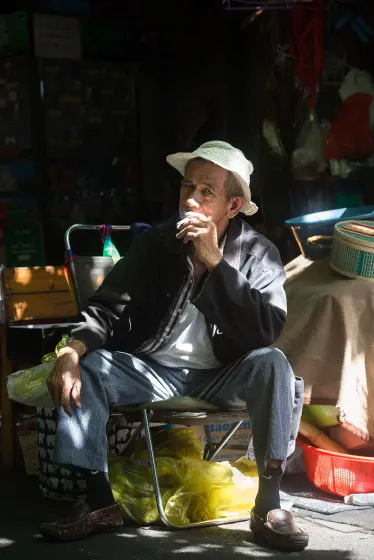

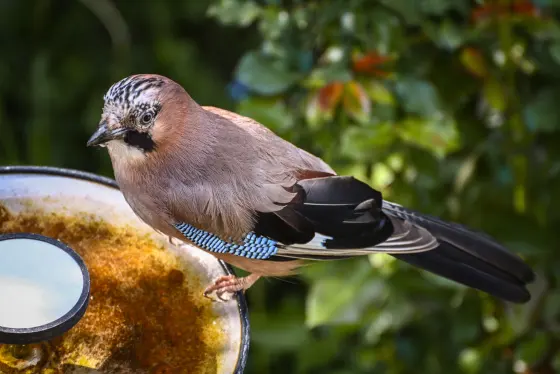
Sfoca una parte di un'immagine online: nascondi un volto, una targa, un numero civico o un nome su un documento mentre il resto della foto resta perfettamente nitido. PIXLFLW funziona interamente nel browser: l'immagine che stai censurando non viene mai caricata su un server, proprio come vuoi quando il motivo per cui sei qui è ciò che stai nascondendo.
Due modi per scegliere l'area
- Pennello: dipingi sopra ciò che deve sparire. La sfocatura segue il tratto mentre disegni e la dimensione del pennello va da una targa a un'intera persona.
- Seleziona oggetto: tocca ciò che vuoi nascondere e un modello di segmentazione che gira sul tuo dispositivo ne traccia il contorno. Nessun cloud, account o caricamento.
- Gomma: sei andato troppo oltre? Cancella una parte della selezione. Nulla è distruttivo finché non esporti.
- Inverti: un clic sfoca tutto tranne la selezione, così puoi sfocare lo sfondo e tenere nitido il soggetto.
Sfocatura o mosaico
Una sfocatura morbida sembra naturale in una foto che pubblichi. Il mosaico comunica una censura intenzionale ed è la scelta più sicura per il testo: una sfocatura leggera a volte può essere parzialmente invertita, mentre una pixelizzazione pesante elimina direttamente il dettaglio. Qui sono lo stesso strumento: basta un'opzione e un cursore dell'intensità che si adatta all'immagine, quindi ciò che vedi nell'anteprima è ciò che finisce nel file esportato.
Come sfocare una parte di una foto
- Trascina un'immagine nell'area di caricamento (formati: GIF, JPG, BMP, PNG, WEBP, HEIC, TIFF).
- Dipingi sull'area con il pennello oppure passa a Seleziona oggetto e toccalo.
- Regola intensità e morbidezza dei bordi; seleziona Inverti se intendevi lo sfondo.
- Scarica il risultato come JPG o PNG: la sfocatura è incorporata, non è una sovrapposizione.
Resta nascosto alla risoluzione completa?
Sì. Viene memorizzata la selezione, con tratti e contorni, non una bitmap delle dimensioni dello schermo, quindi al momento dell'esportazione viene renderizzata di nuovo alla risoluzione reale della foto. Se sfoci un volto in una foto da 12 MP, resta nascosto in tutti i 12 MP, con un bordo sfumato anziché un riquadro simile a un adesivo.
La sfocatura selettiva è un passaggio non distruttivo: puoi riaprirla, spostare la selezione, cambiarne l'intensità o eliminarla del tutto in qualsiasi momento prima dell'esportazione. Il file originale sul disco non viene mai modificato.